# Issuance of a Credential with a Signer Account
#### **1. "New Credential as Signer" Form**
To create a Verifiable Credential, click the "**New credential as Signer**" button, at the top right corner of the dashboard page, which will take you to the creation form.
[](https://knowledgebase.dome-marketplace-dev2.org/uploads/images/gallery/2025-03/DOYimage.png)
#### **2. Complete the "New Credential as Signer" form**
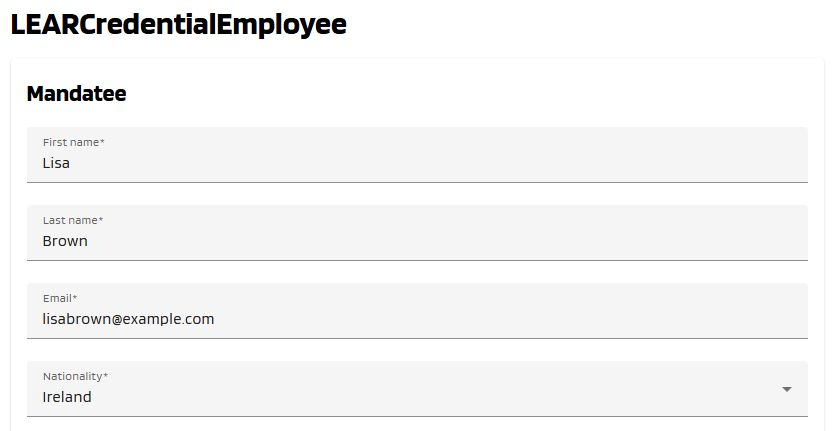
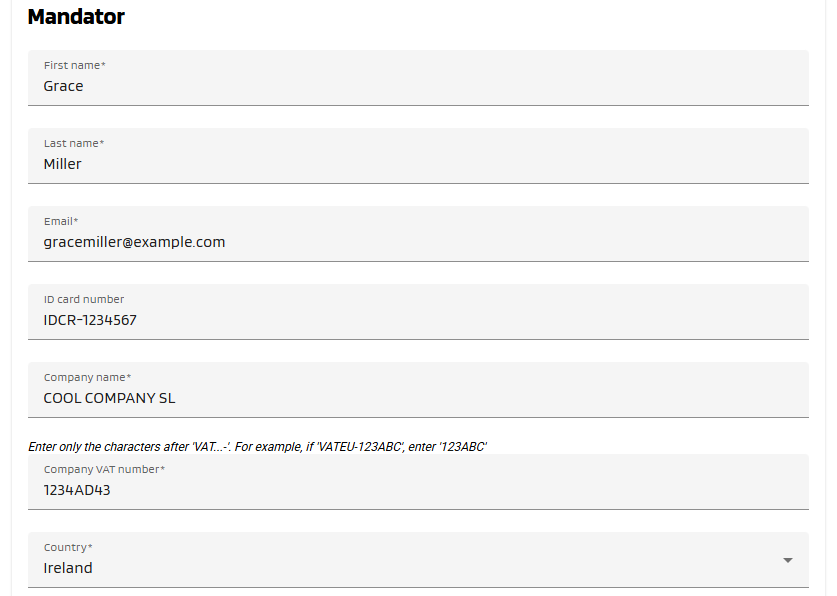
Fill all the Mandatee and Mandator fields of the form, which are marked with a "\*" symbol. Below, see an example of filled form.
[](https://knowledgebase.dome-marketplace-dev2.org/uploads/images/gallery/2025-03/YQZimage.png)
[](https://knowledgebase.dome-marketplace-dev2.org/uploads/images/gallery/2025-03/KFFimage.png)
#### **3. Adding Powers to the Credential Subject**
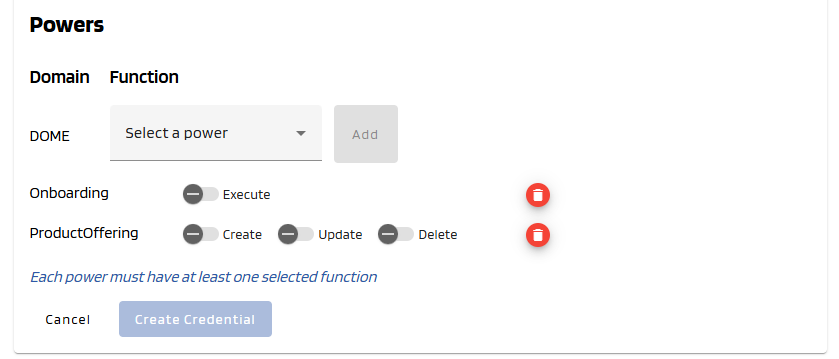
You can add different powers in the last part of the form using the combo box. **Select at least one**.
[](https://knowledgebase.dome-marketplace-dev2.org/uploads/images/gallery/2025-03/BSeimage.png)
#### **4. Create Credential**
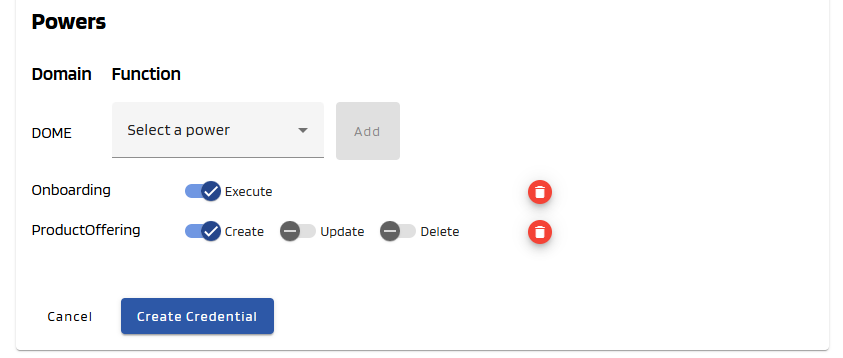
Once all mandatory fields all correctly filled, the **"Create Credential"** button will become brighter, indicating that it can be clicked. Click on it.
[](https://knowledgebase.dome-marketplace-dev2.org/uploads/images/gallery/2025-03/If0image.png)
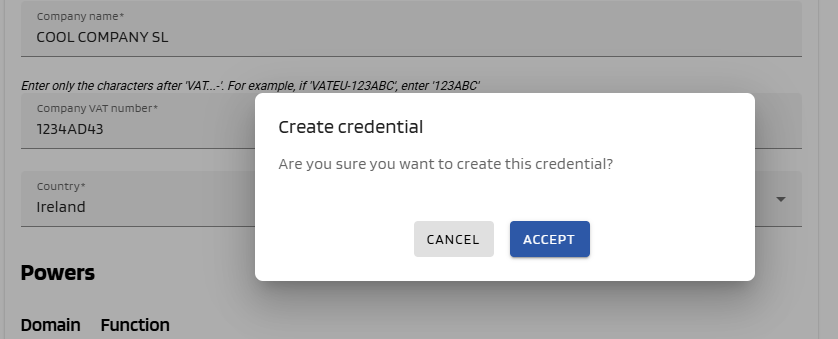
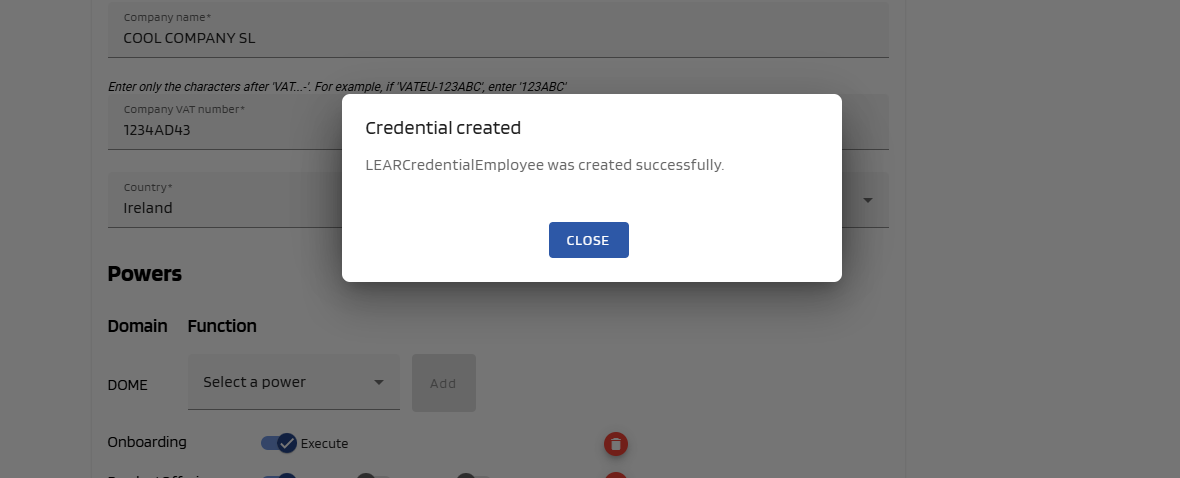
A popup will be displayed to confirm that you want to create the credential. Click "Accept" to create it. If the issuance is successful, a success message will be displayed and you will be redirected to the dashboard page.
[](https://knowledgebase.dome-marketplace-dev2.org/uploads/images/gallery/2025-03/YsAimage.png)
[](https://knowledgebase.dome-marketplace-dev2.org/uploads/images/gallery/2025-03/TEqimage.png)
#### **5. See the Issued Credential**
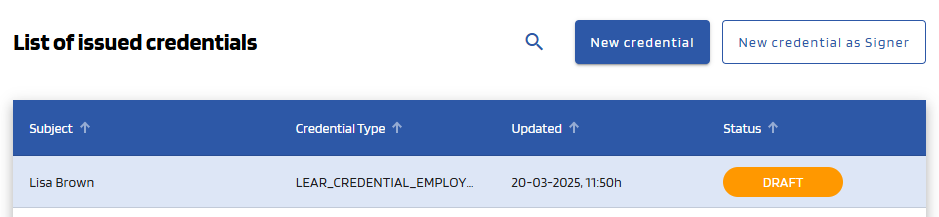
You will see that the Credential you just created has a status of **DRAFT.** After the user downloads it with the Wallet, it will have a status of **VALID** (you might have to refresh the page to see it change).
[](https://knowledgebase.dome-marketplace-dev2.org/uploads/images/gallery/2025-03/MaYimage.png)