# Credential Issuer User Guide

Guide to use the DOME Digital Issuer.

# Introduction

The Credential Issuer is a crucial element in the onboarding process for new users to the DOME Marketplace. This application issues Verifiable Credentials, which are essential for accessing and interacting with the DOME Marketplace. These credentials are issued to users who then use the [DOME Digital Wallet](https://wallet.dome-marketplace-eu.org/) to retrieve and store them securely.

# Login into the Credential Issuer

- **Access the Credential Issuer**
    
    
    - Visit the DOME Issuer by clicking on the following link: [DOME Issuer](https://issuer.dome-marketplace-prd.org).
        
        ![Credential Issuer Access](https://github.com/DOME-Marketplace/issuer-guide/raw/issuer-guide/assets/01.png)
- **Access the Login**
    
    
    - Scroll down to the "**Login as Legal Representative**" button
        
        ![Credential Issuer Access](https://github.com/DOME-Marketplace/issuer-guide/raw/issuer-guide/assets/02.png)
- **Log In.**
    
    
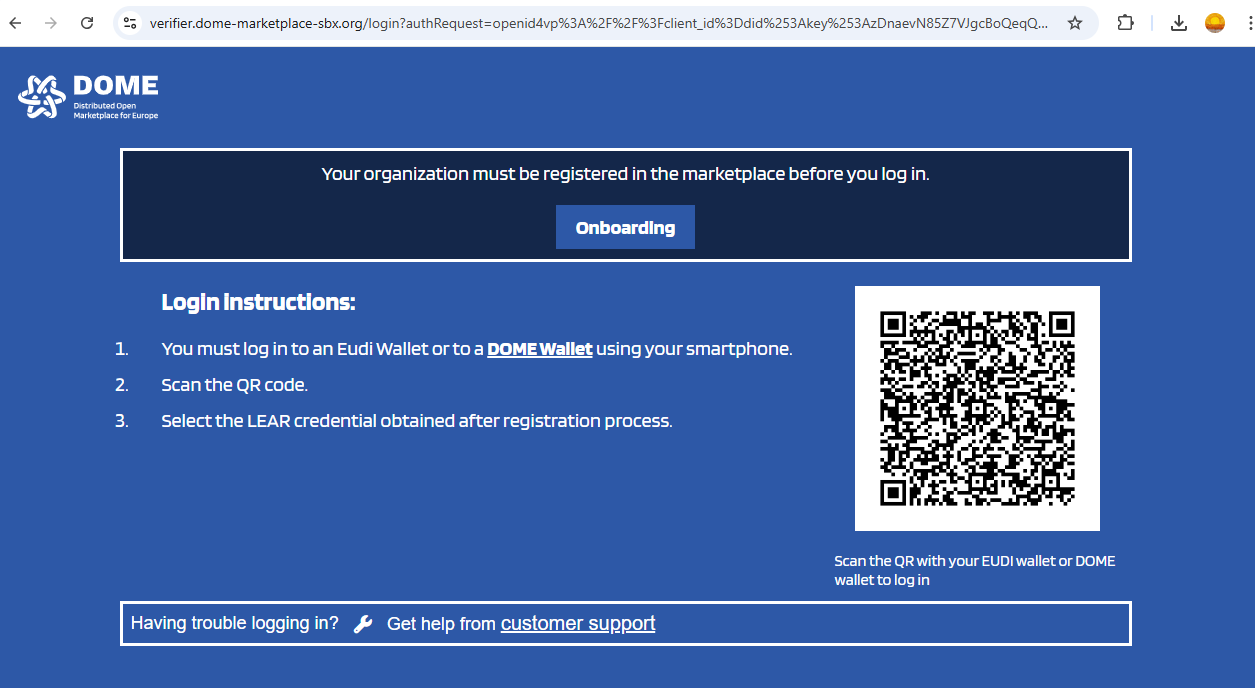
    - Scan the QR
        
        [![image.png](https://knowledgebase.dome-marketplace-prd.org/uploads/images/gallery/2025-03/scaled-1680-/image.png)](https://knowledgebase.dome-marketplace-prd.org/uploads/images/gallery/2025-03/image.png)
- **You will enter the issued credentials list view**
    
    
    - In the initial view you can see all the issued credentials by the current user/organization:
        
        <span id="bkmrk--1" style="font-weight:normal;"><span style="font-size:10.5pt;font-family:Arial, sans-serif;font-weight:bold;font-style:normal;font-variant:normal;"><span style="border-width:initial;border-style:none;display:inline-block;overflow:hidden;width:624px;height:176px;">![AD_4nXfHbTLuWl7BdWj6yjABGIRTfskywSYEn6nVQnaELzv8g8iksihFWQ6BSvcsNpxgF0QlCr85iugZCtUE4FkZPNjAcCv8MLTLHM8WR7u3hWXzb3C9zYlmINiR5HtIbhxVIGifbEdLXmm5OHrcmusyU-8?key=738eP6fCA9kXgytCxnWGCQaQ](https://lh7-rt.googleusercontent.com/docsz/AD_4nXfHbTLuWl7BdWj6yjABGIRTfskywSYEn6nVQnaELzv8g8iksihFWQ6BSvcsNpxgF0QlCr85iugZCtUE4FkZPNjAcCv8MLTLHM8WR7u3hWXzb3C9zYlmINiR5HtIbhxVIGifbEdLXmm5OHrcmusyU-8?key=738eP6fCA9kXgytCxnWGCQaQ)</span></span></span>

# Issuance of a Credential with a Signer Account

#### <span style="text-decoration:underline;">**1. "New Credential as Signer" Form**</span>

To create a Verifiable Credential, click the "**New credential as Signer**" button, at the top right corner of the dashboard page, which will take you to the creation form.

<span style="text-decoration:underline;">[![image.png](https://knowledgebase.dome-marketplace-dev2.org/uploads/images/gallery/2025-03/scaled-1680-/DOYimage.png)](https://knowledgebase.dome-marketplace-dev2.org/uploads/images/gallery/2025-03/DOYimage.png)</span>

####  <span style="text-decoration:underline;">**2. Complete the "New Credential as Signer" form**</span>

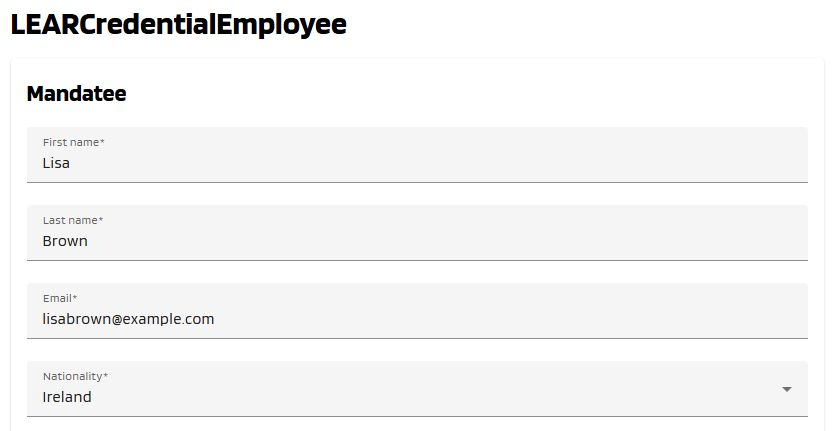
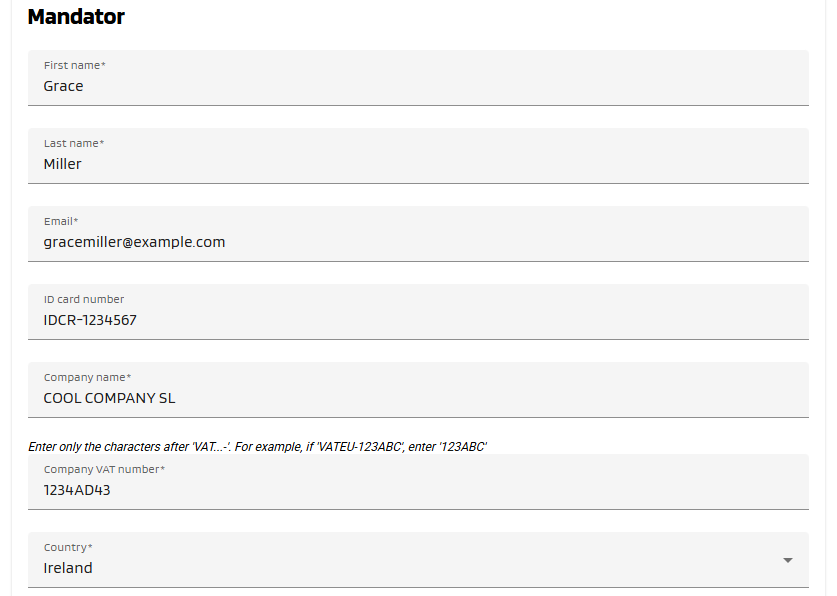
Fill all the Mandatee and Mandator fields of the form, which are marked with a "\*" symbol. Below, see an example of filled form.

[![image.png](https://knowledgebase.dome-marketplace-dev2.org/uploads/images/gallery/2025-03/scaled-1680-/YQZimage.png)](https://knowledgebase.dome-marketplace-dev2.org/uploads/images/gallery/2025-03/YQZimage.png)
[![image.png](https://knowledgebase.dome-marketplace-dev2.org/uploads/images/gallery/2025-03/scaled-1680-/KFFimage.png)](https://knowledgebase.dome-marketplace-dev2.org/uploads/images/gallery/2025-03/KFFimage.png)
#### <span style="text-decoration:underline;">**3. Adding Powers to the Credential Subject**</span>

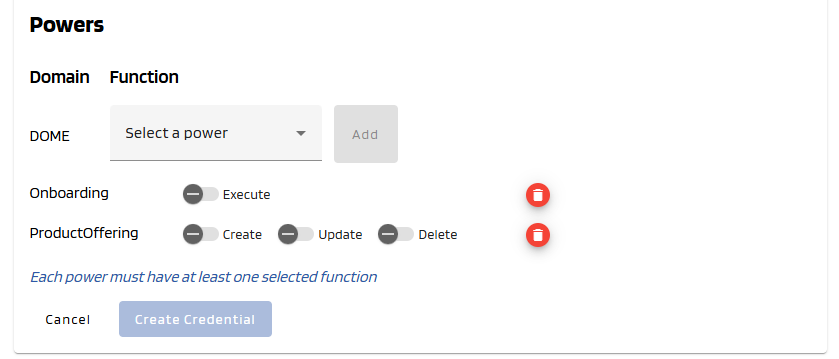
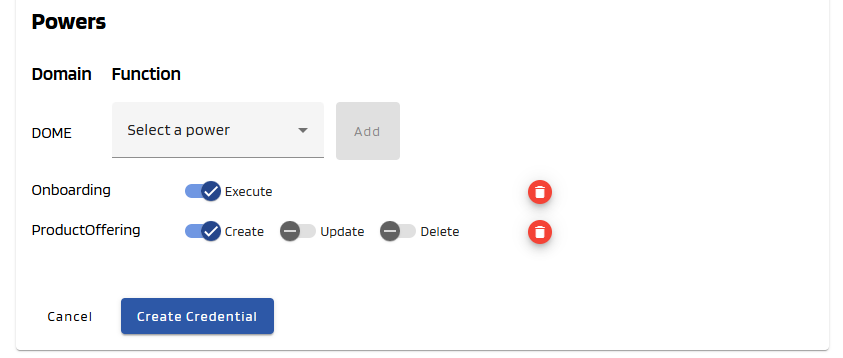
You can add different powers in the last part of the form using the combo box. **Select at least one**.

[![image.png](https://knowledgebase.dome-marketplace-dev2.org/uploads/images/gallery/2025-03/scaled-1680-/BSeimage.png)](https://knowledgebase.dome-marketplace-dev2.org/uploads/images/gallery/2025-03/BSeimage.png)
#### <span style="text-decoration:underline;">**4. Create Credential**</span>

Once all mandatory fields all correctly filled, the **"Create Credential"** button will become brighter, indicating that it can be clicked. Click on it.

[![image.png](https://knowledgebase.dome-marketplace-dev2.org/uploads/images/gallery/2025-03/scaled-1680-/If0image.png)](https://knowledgebase.dome-marketplace-dev2.org/uploads/images/gallery/2025-03/If0image.png)
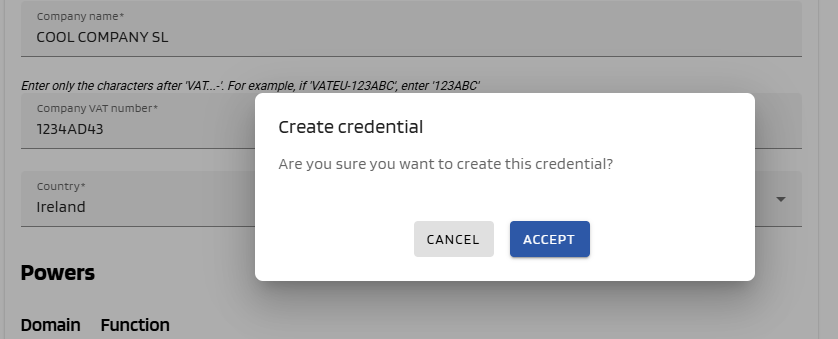
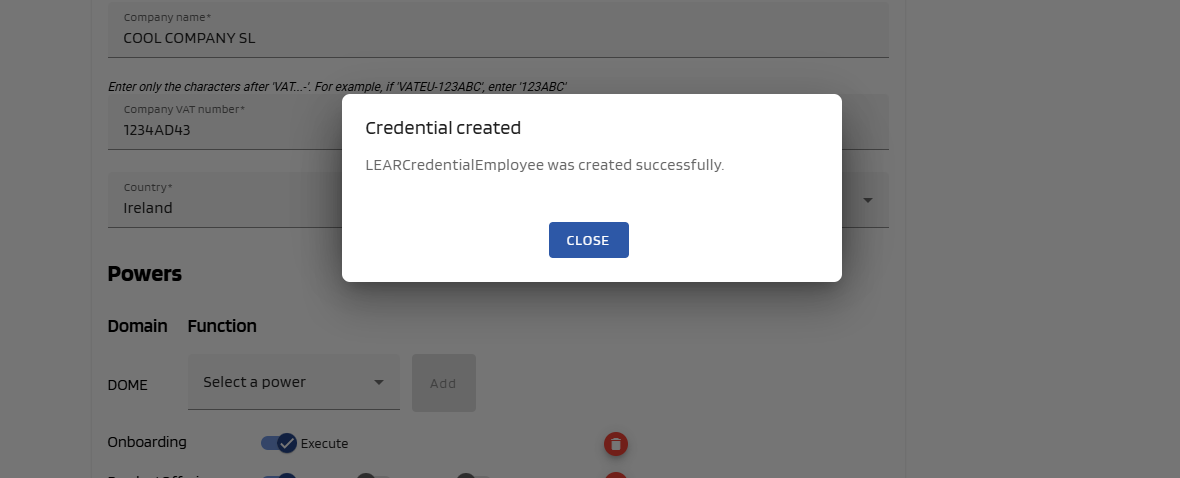
A popup will be displayed to confirm that you want to create the credential. Click "Accept" to create it. If the issuance is successful, a success message will be displayed and you will be redirected to the dashboard page.

[![image.png](https://knowledgebase.dome-marketplace-dev2.org/uploads/images/gallery/2025-03/scaled-1680-/YsAimage.png)](https://knowledgebase.dome-marketplace-dev2.org/uploads/images/gallery/2025-03/YsAimage.png)
[![image.png](https://knowledgebase.dome-marketplace-dev2.org/uploads/images/gallery/2025-03/scaled-1680-/TEqimage.png)](https://knowledgebase.dome-marketplace-dev2.org/uploads/images/gallery/2025-03/TEqimage.png)
#### <span style="text-decoration:underline;">**5. See the Issued Credential**</span>

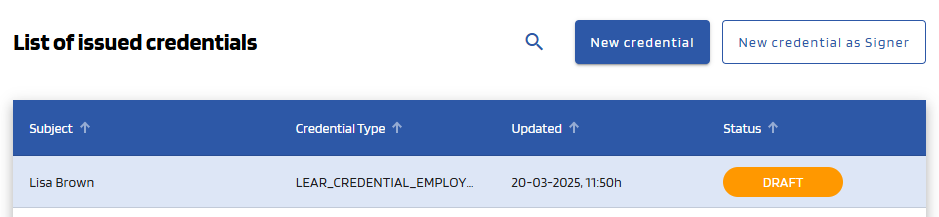
You will see that the Credential you just created has a status of **DRAFT.** After the user downloads it with the Wallet, it will have a status of **VALID** (you might have to refresh the page to see it change).

[![image.png](https://knowledgebase.dome-marketplace-dev2.org/uploads/images/gallery/2025-03/scaled-1680-/MaYimage.png)](https://knowledgebase.dome-marketplace-dev2.org/uploads/images/gallery/2025-03/MaYimage.png)
# Credential Subject actions

- **Credential Subject Email notification**
    
    
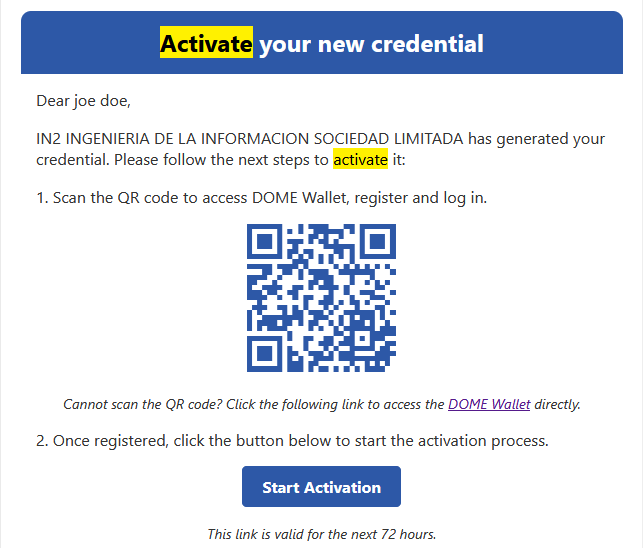
    - At this point the Credential Subject will receive an e-mail notification with the instructions and the link to download the Credential to his/her Wallet. This link will be available for 72 hours.
        
        ![Credential Issuer Credential Subject E-mail Notification](https://github.com/DOME-Marketplace/issuer-guide/raw/issuer-guide/assets/10.png)
- **Updated Credential status**
    
    
    - - When you click **Start Credential Offer** button, the status of the Credential will change to "**DRAFT**" at this stage.
            
            <span id="bkmrk-" style="font-weight:normal;"><span style="font-size:10.5pt;font-family:Arial, sans-serif;font-weight:bold;font-style:normal;font-variant:normal;"><span style="border-width:initial;border-style:none;display:inline-block;overflow:hidden;width:624px;height:92px;">![AD_4nXepXjBfgGz_lwPqVoZV-dsPYw863Z0G7Vc_RMYH7NlToudSOZaFkF-UcnU2ba5uf_dQI8j_tAUKqfUUp3EyapIGgFbeM1laoNS-rVRixD1NGIcI70ziR58AyhAA4jqbETuhbVtv9pWLy7HUWTkju5I?key=738eP6fCA9kXgytCxnWGCQaQ](https://lh7-rt.googleusercontent.com/docsz/AD_4nXepXjBfgGz_lwPqVoZV-dsPYw863Z0G7Vc_RMYH7NlToudSOZaFkF-UcnU2ba5uf_dQI8j_tAUKqfUUp3EyapIGgFbeM1laoNS-rVRixD1NGIcI70ziR58AyhAA4jqbETuhbVtv9pWLy7HUWTkju5I?key=738eP6fCA9kXgytCxnWGCQaQ)</span></span></span>
- **Download Credential to Wallet**
    
    
    - Once the credential has been saved in the wallet, the status will change to **"VALID"**. <span id="bkmrk--1" style="font-weight:normal;"><span style="font-size:10.5pt;font-family:Arial, sans-serif;font-weight:bold;font-style:normal;font-variant:normal;"><span style="border-width:initial;border-style:none;display:inline-block;overflow:hidden;width:624px;height:91px;">![AD_4nXfBbIOORe6NQZCMTzyhwAsTVe7o68JRQeABFIHsqPCR0WbnNZJWuSd4Aom_CSkJudnRq2cJuE_DEMZjCKURasd81q3NtbQ_5_KJqnQP4MRO8Y3cylIig9cNZ1TI-KYsKdlQSOlhlyTPKnIGXtKhmm4?key=738eP6fCA9kXgytCxnWGCQaQ](https://lh7-rt.googleusercontent.com/docsz/AD_4nXfBbIOORe6NQZCMTzyhwAsTVe7o68JRQeABFIHsqPCR0WbnNZJWuSd4Aom_CSkJudnRq2cJuE_DEMZjCKURasd81q3NtbQ_5_KJqnQP4MRO8Y3cylIig9cNZ1TI-KYsKdlQSOlhlyTPKnIGXtKhmm4?key=738eP6fCA9kXgytCxnWGCQaQ)</span></span></span>

# Troubleshooting: Expired Credential Offer

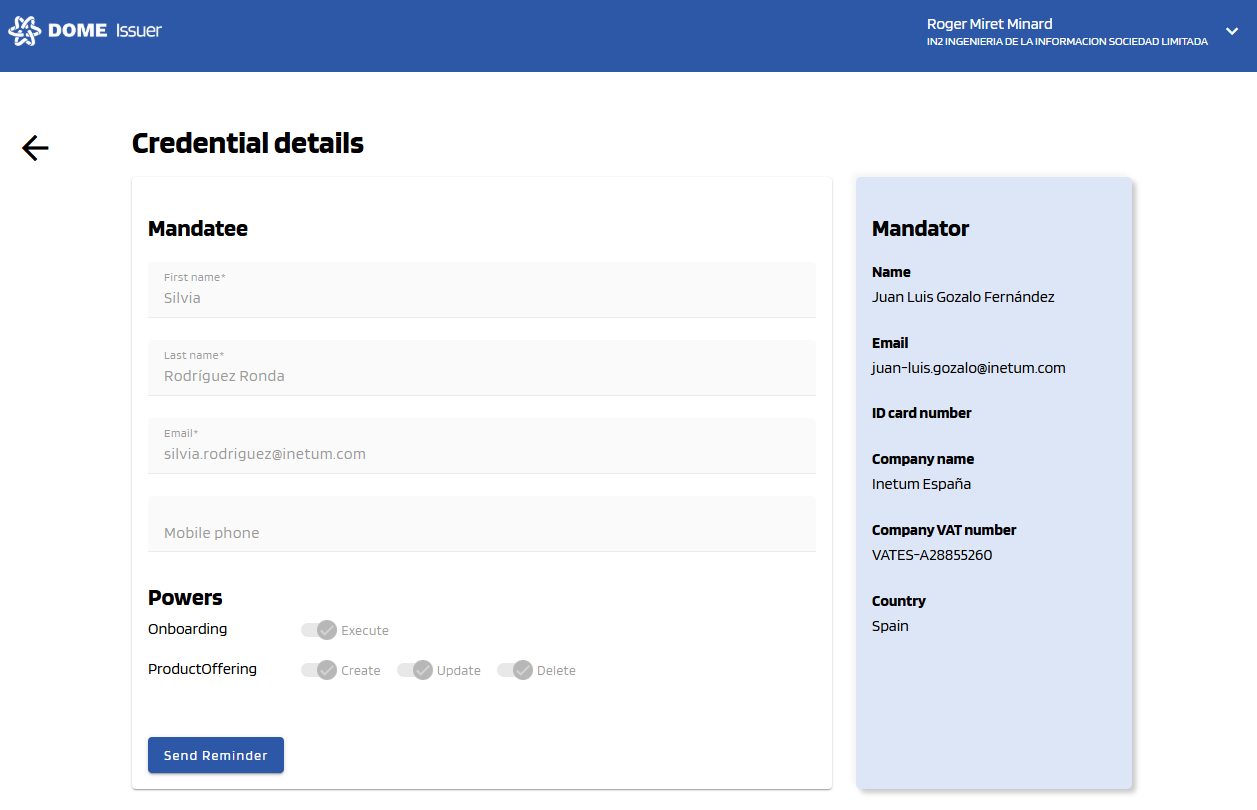
- From the moment of the creation of a new Credential the link for the Credential Subject to download the Credential have a lifespan of 72 hours. If the Credential Subject didn't download the Credential in that time or fails to do it there is an option to send a fresh e-mail notification to the Credential Subject with the instruction and a new functional link to start the process. To do so click on the status of the Credential to access its details.
    
    ![AD_4nXcspiATnPSSxZy7xSfALZeyUIpilKlDg4NHAs4nojk6HQXE1pKl6YqeNpRwKTWBN140E2hz-LZRFxOLSuRx4BrZxOLUS9pH0hmvaM0A-J2lFLIDGfpQGAxKM2fe-smaI_2XI9psI9adJpFDf7hPvnk?key=738eP6fCA9kXgytCxnWGCQaQ](https://lh7-rt.googleusercontent.com/docsz/AD_4nXcspiATnPSSxZy7xSfALZeyUIpilKlDg4NHAs4nojk6HQXE1pKl6YqeNpRwKTWBN140E2hz-LZRFxOLSuRx4BrZxOLUS9pH0hmvaM0A-J2lFLIDGfpQGAxKM2fe-smaI_2XI9psI9adJpFDf7hPvnk?key=738eP6fCA9kXgytCxnWGCQaQ)
- In the details view click the "**Send Reminder**" button.
    
    [![image.png](https://knowledgebase.dome-marketplace-prd.org/uploads/images/gallery/2025-03/scaled-1680-/EOPimage.png)](https://knowledgebase.dome-marketplace-prd.org/uploads/images/gallery/2025-03/EOPimage.png)
- The Credential Subject will receive the new email notification to start de process again.
    
    [![image.png](https://knowledgebase.dome-marketplace-prd.org/uploads/images/gallery/2025-03/scaled-1680-/8Yvimage.png)](https://knowledgebase.dome-marketplace-prd.org/uploads/images/gallery/2025-03/8Yvimage.png)
For any other issues you can contact the technical support team by creating a ticket on [ticketing system](https://ticketing.dome-marketplace-prd.org/)